Increase battery life with new iOS 9

After a long time Apple announced it's new iPhone and TV. Along this comes a new and better version of iOS 9. iOS has a great way that can save your battery life. It is more efficient and useful than any other iOS I have used. Low battery is one of the most common problems for iPhone users. But this new update has increased battery life along with giving us more effective OS.


So here's the new technique to increase the battery life of iPhone.
1. Go to Settings 
2. Then scroll down and select Battery 
3. Now turn on Low Power Mode
4. So, your phone will get a long lasting battery life.


10 Tips and Tricks For Internet Browser


There are many tips and tricks for every browser. Here are some common and most important tips and tricks for all browsers.
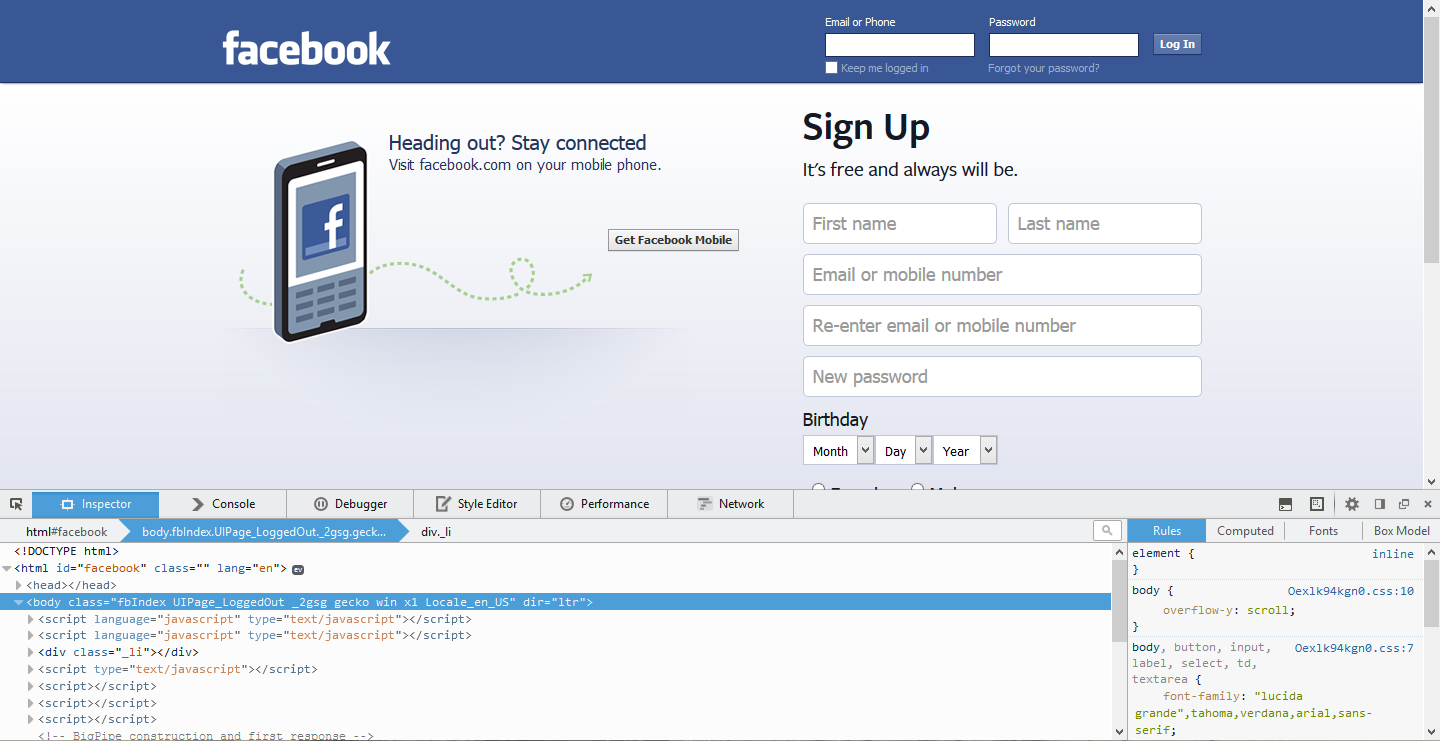
  1. You don't need to write the whole web address like www.facebook.com. You can just simply write facebook on your address bar and press Ctrl+Enter.

  1. If you are filling some online form, then without the moving your mouse you can just move to your next box by pressing Tab 
  2. To move your mouse or cursor to the address press Alt+d.
  3. To zoom in or out a web page, just hold Ctrl and press + or - .
  4. Press backspace or press Alt+left arrow to return to the previous page.
  5. Press Ctrl+r or F5 to refresh your page.
  6. Press F11 to make your browser in full-screen mode.And press again to make normal.
  7. Press F12 to make your browser in developer mode.

  1. Press Ctrl+b to go to the bookmark.
  2. Press Ctrl+f to find some match or word in the page.


Secure your virus affected Phone


techwin1,virus protection,mobile virus protection


In the Previous Post, I told about the symptoms of virus attracted phone.So, To secure your virus affected phone you just need to follow some steps:


  • Install a good anti-virus, update it and scan your whole phone including your phone memory and MMC card. If there is any thread then remove it.restart your phone.
  • Reset your phone. The option can be found in settings.
  • If you still got some problems then you will have to format your entire phone and memory card.
  • Most of the virus problems can be solved by the above methods but if some virus corrupts your OS then you will have to Flash your phone. in this case, I suggest meeting a consultant. 


http://system.alexamaster.com/index.php?Master=12845

Common symptoms when Virus attack mobile-mobile security


Our mobile phone are frequently attracted by the virus. Mainly android phone are attracted more. We often become careless to our phone. We do not use security software for our phone. Here are some common symptoms when Virus attack:
  • Mobile becomes slow: It happens in most cases that our mobile becomes slow when it is affected by any virus.This because some unwanted app or program is running behind your eye. they breach your security and hand over our privacy concern file to the hacker.
  • Mobile freezes frequently: Sometimes your mobile becomes hang and all program stopped. You need to restart your phone. It happens because of the same reason as the above point.
  • Turn off automatically: Mobiles sometimes get switched off without any reason.It may happen 2-3 times a day or maybe more.Or sometimes it may restart also.
  • Your OS becomes corrupted: Virus may affect your operating system(os). Then your programs and apps will not work or it may failure to open the phone.Sometimes it will show a blank screen.

Do more with Flash drive

بِسْمِ اللهِ الرَّحْمٰنِ الرَّحِيْمِ


We usually use the flash drive for exchanging data's only.But a flash is not confined in exchanging data only. Different type of work can be done with it.So read the whole article and learn more from “Do more with Flash drive”.
What is a flash drive?
A flash drive is a small USB device which is used to store data and transfer data from one computer to another.To know more about flash drive please click here
  • Log-in and Log-out with Flash drive: Now you can log in and log out using the flash drive from any computer. Microsoft is giving this option. Otherwise, you can use Blue Micro USB Flash Drive Logon as third-party software. you can download it from here
  • Virtual Memory: When PC's memory is running low then ready will help you to increase your performance.Creating ReadyBoost on USB Flash drive is very simple.Just follow this link


  • Encrypted Data: You are transferring different files by flash drive.It also contains your personal information. So, you can encrypt your data by using different software.I recommend true crypt.
  • Portable Operating System(OS): Now a day portable OS becomes very popular.Those who are interested in Linux OS alongside Windows or Mac can use portable OS. Ubuntu, Redhat, Linux Mint, Debian, Fedora etc are famous among Linux OS.
  • Recovery Environment: You can use your flash drive as recovery environment. Today all OS from Windows and Mac to Linux give facilities for creating recovery environment on the flash drive.

Remove Google Search History

Google store search history of the user for faster internet browsing. But if want to remove Google search history for privacy concern, just follow the steps:


  • Go to www.google.com then sign in.
  • Go to settings from the bottom of the page.
Search History,google Search History
  • Click on History 

  • Select the histories and click remove items

150 Useful Run Commands


By using run commands we can easily open some files and folders. Some important run commands are given below:

To AccessRun Commands
Accessibility Controlsaccess.cpl
Accessibility Wizardaccwiz
Add Hardware Wizardhdwwiz.cpl
Add/Remove Programsappwiz.cpl
Administrative Toolscontrol admintools
Adobe Acrobat (if installed)acrobat
Adobe Designer (if installed)formdesigner
Adobe Distiller (if installed)acrodist
Adobe ImageReady (if installed)imageready
Adobe Photoshop (if installed)photoshop
Automatic Updateswuaucpl.cpl
Bluetooth Transfer Wizardfsquirt
Calculatorcalc
Certificate Managercertmgr.msc
Character Mapcharmap
Check Disk Utilitychkdsk
Clipboard Viewerclipbrd
Command Promptcmd
Component Servicesdcomcnfg
Computer Managementcompmgmt.msc
Control Panelcontrol
Date and Time Propertiestimedate.cpl
DDE Sharesddeshare
Device Managerdevmgmt.msc
Direct X Control Panel (if installed)*directx.cpl
Direct X Troubleshooterdxdiag
Disk Cleanup Utilitycleanmgr
Disk Defragmentdfrg.msc
Disk Managementdiskmgmt.msc
Disk Partition Managerdiskpart
Display Propertiescontrol desktop
Display Propertiesdesk.cpl
Display Properties (w/Appearance Tab Preselected)control color
Dr. Watson System Troubleshooting Utilitydrwtsn32
Driver Verifier Utilityverifier
Event Viewereventvwr.msc
Files and Settings Transfer Toolmigwiz
File Signature Verification Toolsigverif
Findfastfindfast.cpl
Firefox (if installed)firefox
Folders Propertiesfolders
Fontscontrol fonts
Fonts Folderfonts
Free Cell Card Gamefreecell
Game Controllersjoy.cpl
Group Policy Editor (XP Prof)gpedit.msc
Hearts Card Gamemshearts
Help and Supporthelpctr
HyperTerminalhypertrm
Iexpress Wizardiexpress
Indexing Serviceciadv.msc
Internet Connection Wizardicwconn1
Internet Exploreriexplore
Internet Propertiesinetcpl.cpl
Internet Setup Wizardinetwiz
IP Configuration (Display Connection Configuration)ipconfig /all
IP Configuration (Display DNS Cache Contents)ipconfig /displaydns
IP Configuration (Delete DNS Cache Contents)ipconfig /flushdns
IP Configuration (Release All Connections)ipconfig /release
IP Configuration (Renew All Connections)ipconfig /renew
IP Configuration (Refreshes DHCP & Re-Registers DNS)ipconfig /registerdns
IP Configuration (Display DHCP Class ID)ipconfig /showclassid
IP Configuration (Modifies DHCP Class ID)ipconfig /setclassid
Java Control Panel (if installed)jpicpl32.cpl
Java Control Panel (if installed)javaws
Keyboard Propertiescontrol keyboard
Local Security Settingssecpol.msc
Local Users and Groupslusrmgr.msc
Logs You Out Of Windowslogoff
Malicious Software Removal Toolmrt
Microsoft Access (if installed)msaccess
Microsoft Chatwinchat
Microsoft Excel (if installed)excel
Microsoft Frontpage (if installed)frontpg
Microsoft Movie Makermoviemk
Microsoft Paintmspaint
Microsoft Powerpoint (if installed)powerpnt
Microsoft Word (if installed)winword
Microsoft Syncronization Toolmobsync
Minesweeper Gamewinmine
Mouse Propertiescontrol mouse
Mouse Propertiesmain.cpl
Nero (if installed)nero
Netmeetingconf
Network Connectionscontrol netconnections
Network Connectionsncpa.cpl
Network Setup Wizardnetsetup.cpl
Notepadnotepad
Nview Desktop Manager (if installed)nvtuicpl.cpl
Object Packagerpackager
ODBC Data Source Administratorodbccp32.cpl
On Screen Keyboardosk
Opens AC3 Filter (if installed)ac3filter.cpl
Outlook Expressmsimn
Paintpbrush
Password Propertiespassword.cpl
Performance Monitorperfmon.msc
Performance Monitorperfmon
Phone and Modem Optionstelephon.cpl
Phone Dialerdialer
Pinball Gamepinball
Power Configurationpowercfg.cpl
Printers and Faxescontrol printers
Printers Folderprinters
Private Character Editoreudcedit
Quicktime (If Installed)QuickTime.cpl
Quicktime Player (if installed)quicktimeplayer
Real Player (if installed)realplay
Regional Settingsintl.cpl
Registry Editorregedit
Registry Editorregedit32
Remote Access Phonebookrasphone
Remote Desktopmstsc
Removable Storagentmsmgr.msc
Removable Storage Operator Requestsntmsoprq.msc
Resultant Set of Policy (XP Prof)rsop.msc
Scanners and Camerassticpl.cpl
Scheduled Taskscontrol schedtasks
Security Centerwscui.cpl
Servicesservices.msc
Shared Foldersfsmgmt.msc
Shuts Down Windowsshutdown
Sounds and Audiommsys.cpl
Spider Solitare Card Gamespider
SQL Client Configurationcliconfg
System Configuration Editorsysedit
System Configuration Utilitymsconfig
System File Checker Utility (Scan Immediately)sfc /scannow
System File Checker Utility (Scan Once At The Next Boot)sfc /scanonce
System File Checker Utility (Scan On Every Boot)sfc /scanboot
System File Checker Utility (Return Scan Setting To Default)sfc /revert
System File Checker Utility (Purge File Cache)sfc /purgecache
System File Checker Utility (Sets Cache Size to size x)sfc /cachesize=x
System Informationmsinfo32
System Propertiessysdm.cpl
Task Managertaskmgr
TCP Testertcptest
Telnet Clienttelnet
Tweak UI (if installed)tweakui
User Account Managementnusrmgr.cpl
Utility Managerutilman
Windows Address Bookwab
Windows Address Book Import Utilitywabmig
Windows Backup Utility (if installed)ntbackup
Windows Explorerexplorer
Windows Firewallfirewall.cpl
Windows Magnifiermagnify
Windows Management Infrastructurewmimgmt.msc
Windows Media Playerwmplayer
Windows Messengermsmsgs
Windows Picture Import Wizard (need camera connected)wiaacmgr
Windows System Security Toolsyskey
Windows Update Launcheswupdmgr
Windows Version (to show which version of windows)winver
Windows XP Tour Wizardtourstart
Wordpadwrite

keyboard Shortcuts for Special Character


There are many shortcuts for writing characters.Example: Alt+224 = α. some important symbols and characters are:


Alt + 0224à
Alt + 0232è
Alt + 0236ì
Alt + 0242ò
Alt + 0241ñ
Alt + 0228ä
Alt + 0246ö
Alt + 0252ü
Alt + 0248ø
Alt + 0223ß
Alt + 0198Æ
Alt + 0231ç
Alt + 0191¿
Alt + 0176° (degree symbol)
Alt + 0177± (plus/minus symbol)
Alt + 0153
Alt + 0169©
Alt + 0174®
Alt + 0128€ (Euro currency)
Alt + 0162¢ (Cent symbol)
Alt + 0163£ (British Pound currency)
Alt + 0165¥ (Japanese Yen currency)

Increase Your PC Performance-Part3

Computer sometimes becomes slow for temporary files, fragmented file, Memory dump etc.Following steps can be taken to clean them:

Defragment:


  1. For windows7: Go to start menu>Accessories>System Tools>Defragmenter
  2. For windows 8: control panel>Defragmenter and optimize drive
  3. Analyzing you can know about amount fragmented files
  4. Then defragment or optimize


Temporary File:
  1. Go to run and type temp and afterward  %temp%
  2. Then a new window will come
  3. Delete all files from that window


Prefetch:
  1. Go to run and type prefetch
  2. Then a new window will come
  3. Delete all files from that window
Note : Clean prefetch files only when you have insufficient space in Hard Drive.

Tree:
  1. Go to run and type tree
  2. Then a new window will come
  3. Delete all files from that window
Refresh RAM:
  1. Go to notepad and type mystring=(80000000)
  2. Then save as RAM.Vbe
  3. Every you want to refresh RAM just double click on that file
  4. you can also download it from here.

Create ReadyBoost on USB Flash drive

readyboost,virtual ram,increase ram,speedup,techwin1


When PC's memory is running low then ready will help you to increase your performance.Creating ReadyBoost on USB Flash drive is very simple.Just follow my steps:


  • Format Flash Drive for safety
  • Go to Flash Drive properties
  • then go ReadyBoost tab
  • select any of the two options
  • click apply and OK.
Here is a video for Creating ReadyBoost on USB Flash drive


Ten Commandments of Computer Ethics


The Ten Commandments of Computer Ethics were created in 1992 by the Computer Ethics Institute. The Commandments were in the book named "In Pursuit of Ten commandments for Computer Ethics" by Ramon C. Barquin as a means to create a set of standard to guide and instruct people in the ethical use of computers. They are:


  1. Do not use a computer in ways that may harm other people:  In this commandment, it is said that to use the computer in such way that causes harm others people is quite unethical. It does not mean only the physical harm of other people also means harm and damage of others file or data. It is a crime if anybody steals the file or makes changes the file of other people as started in this commandment. Stealing others information's and files and programming other is the crime. In the same way, hacking, keeping, spamming is also computing crime.
  2. Do not use computer technology to cause interference in other users work:  Computer software is to be used in such a way so that it may not harm other user and disturb him. A virus is a harmful program in normal programming. Malicious software disturbs in many ways in computer works. It can slow the complete memory using resources of the computer or can make slow the speed of works. As a result, the computer may show a wrong reading. It is unethical to harm computers work by malicious software.
  3. Do not spy on another person's computer data:  Way to read others e-mail is a crime. In the same way to download other person's data without his permission is also a crime.
  4. Do not use computer technology to steal information:  It is a serious crime to steal sensitive information or to disclose the security of other. It is also unethical to collect the reports of patients from the hospital or information of any client from the bank.It is also a cheat to do money laundering. 
  5. Do not contribute to the spread of misinformation using computer technology:  It is a crime to spread misinformation through email, blog, website or any other means.
  6. Refrain from copying software or buying pirated copies. Pay for software unless it is free:  Like any other artistic or literary work, software is copyrighted. A piece of code is the original work of the individual who created it. It is copyrighted in his name. In the case of a developer writing software for the organization he works for, the organization holds the copyright for it. Obtaining illegal copies of copyright software is unethical.
  7.  Do not use someone else's computer resources unless authorized:  Multi-user systems have user specific password, thus intruding his private space in unethical. It is not ethical to hack password for gaining unauthorized access to a password-protected computer system. Accessing data that you are not authorized to access or gaining access to another user's computer without his permission is not ethical.
  8. It is wrong to claim ownership of a work which is the output of someone else intellect:  Program developed by a developer is his/her property. If he is working with an organization, they are the organization's property. Copying them and propagating them is unethical.
  9. Before developing software, think about the social impact it can have:  Looking at the social consequences that a program can have, describes a broader perspective of looking at technology. Computer software on release reaches millions. Software like video games and animations or educational software can have a social impact on their users.
  10. In using computers for communication, be respectful and courteous with the fellow member:  The using computer should follow the existing procedure in case of communication. In internet communication, one should be court-ions and respectful to others.
Hope all will follow the ten commandments of computer ethics and use more of the technologies.

How to protect your computer from viruses


When the virus attacks our computer it becomes our worst nightmare. We can do our simple tasks. Our data and privacy fall under danger. Pc become slow and no works can be done swiftly. There is a proverb"prevention is better than cure". We should prevent the virus from attacking our computer and secure our important data. The prevention measures are:


  • Use Legal software: Don't use pirated software and applications. Because many pirated software got viruses.Otherwise, they are untrusted too. Always try to use genuine software.
  • Use Anti-Virus: We all know about anti-virus. It's very important when you are using Computer. A good anti-virus can protect you from the virus. So use anti-virus technically. Buy an anti-virus with run-time-protection. Update anti-virus regularly. 
  • Turn on system updates: System updates are very important. Always do update your system. They give protection from the possible hole of your PC.
  •  Turn on Firewall: Firewall prevents you PC from unwanted programs and malware. Firewall is very important to protect PC from Trojan, spyware, hacker, worm and other computer threats.
  • Reset CMOS setting: Changing CMOS setting allow PC to low the risk of threats and speed up PC also.
  •  Site browsing and Downloads: Visit trusted sites only and download from trusted sites. Do not download pirated software.
  • Back-Up: Back-up your PC. In case you got affected by the virus it will help you to recover your data.

In my previous post, I have discussed symptoms of virus-infected PCs.

How do you know your PC is infected by virus and other threads.


Our PCs are infected by virus because most of we don't know when and how our PC is infected. If they knew about virus infection and take measures,then virus couldn't do much harm. As different virus programmed differently, so they outbreak differently. There are some symptoms which can give us forecasting about virus. They are :-

  • Program Crash down or won't start: programs like task manager or registry editor won't start or doesn't show window. It may be worm that attached to various programs and infecting its codes.
  • Unusual Traffic or slow net speed: Sometimes after closing browsers and other programs or applications you will notice computer is still uploading or downloading something. Or your net speed become slow for some unwanted reason. It may be some spyware work.
  • Computer is not booting: If computer suddenly stop booting than you will understand malware has modified or breached your system files.
  • PC Slowing down: some virus is made for making PCs slow. If you open task manager you will see your CPU using is almost 100%.
         

  • Unwanted programs at start up: Some programs may begin at start-up which will open some unwanted applications or take you to some dirty advertisement.
  • File associations: virus may change your .exe of other files which will cause crashing program.
  • Security System disabled: Most malware, viruses disable your security systems and Firewalls to prevent them from deleting.
 

 For preventive measure goto link

Set Shutdown time in your Computer

Sometimes when you are downloading or doing other thing and you need to go out for some reason but you can't turn off the PC.Then you can set a shutdown time. You can do it with very simple steps. 

  • First, go to Run(Windows Key+R)
  • than write shutdown /s /t 20

  • Here t 20 means 20 seconds. So the computer will shut down after 20 seconds.
  • If you want to turn off your PC after 2 and half hours(2 hours and 30 minutes) , instead of t 20 just write 9240 (2*60*60+30*60=7440+1800=9240)

  • And click ok. Your PC will shut down after 2.30 hours.


Increase Your PC Performance-Part2

Hello! Everyone. I have come with the new post to increase your PC performance. 

You can increase your PC performances by some doing some changes in your Computer. Follow the steps:

Startup:
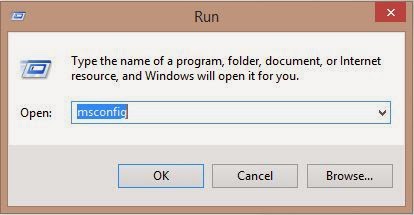
  • PC becomes slow because of some unwanted programs run at start-up. You can just turn them off from Your task manager or you can do it from the run. Simply go to run and write msconfig.
  • Them system configuration window will open. Select startup tab and change enable only those programs.
Autoplay:
  • A virus is another cause of slowing PC. You can protect your PC from viruses of external drives by turning Autoplay off.
  • Go to run again type gpedit.msc. Go to Administrative Templates>Windows Components>Autoplay Policies
  • Open it and click Enable and select All drives then apply and ok.
  • Restart PC


Increase Your PC Performance-Part1

In many ways our PC become slow. Some unimportant files and junk files may cause your PC to slow down. Slow PC is a great problem.We become and sad by using PC. To make your PC fast you need to just follow some simple steps.As I am using windows 8.1, so will show you in my way. Please help yourself on your PC.

1.Adjusting Windows For Best Performance: 

  • First, go to Computer Properties


  • Then Go to Advanced system settings and to Advanced Tab and click on Performance settings
  • Then select third one Adjust for best performance
  •  Click apply and Ok.

Banglalion Wimax MAC Changer

Many of you tried to change or Hack MAC address of Banglalion Wimax.Now I will show you some tricks to change MAC address.You know it's very easy. First, enter your Banglalion username then solve an easy captcha. After that, you will get MAC address of your account.


Here is a YouTube video showing How to do it.


Clean Temporary Files with one Click

Temporary files, or foo files (.TMP), are files created to temporarily contain information while a new file is being made.
Cleaning temp files is a headache for somebody. One has to use run or directly go to temp file to clean it. Or one may use software to clean temp file.
So here is some code that may help you cleaning temp file with single click.To make PC faster we need to clean temp file.For cleaning this files we should take following steps:
  • Open notepad
  • write:


del "C:\WINDOWS\Temp" /s /q
del "C:\WINDOWS\Temp" /s/ah /q
del "C:\Documents and Settings\Administrator\Recent" /s /q
del "c:\Documents and Settings\Administrator\local settings\temp" /s /q
del "c:\Documents and Settings\Administrator\local settings\history" /s /q
del "c:\Documents and Settings\Administrator\local settings\temporary" /s /q
del "C:\Documents and Settings\Administrator\Application Data\Microsoft\Office\Recent" /s /q
del "C:\Documents and Settings\Administrator\Local Settings\Temporary Internet Files" /s /q
del "C:\Documents and Settings\Administrator\Recent" /s /q
del "c:\user\Administrator\local settings\temp" /s /q
del "c:\user\Administrator\local settings\temp" /s/ah /q
del "c:\user\Administrator\local settings\history" /s /q
del "c:\user\Administrator\local settings\temporary" /s /q
del "c:\user\Administrator\local settings\history" /s/ah /q
del "c:\user\Administrator\local settings\temporary" /s/ah /q
del "C:\user\Administrator\Application Data\Microsoft\Office\Recent" /s /q
del "C:\user\Administrator\Local Settings\Temporary Internet Files" /s /q
del "C:\user\Administrator\Application Data\Microsoft\Office\Recent" /s/ah /q
del "C:\user\Administrator\Local Settings\Temporary Internet Files" /s/ah /q
del "c:\user\Administrator\Cookies" /s /q
del "c:\user\Administrator\Cookies" /s/ah /q
del "C:\WINDOWS\system32\1054? /s /q
del "c:\windows\prefects" /s /q
del "C:\Program Files\Uninstall Information" /s /q
del "c:\Documents and Settings\Administrator\Cookies" /s /q
del "C:\WINDOWS\Offline Web Pages" /s/q
del "C:\WINDOWS\Prefetch" /s/q
del "C:\WINDOWS\Prefetch" /s/ah /q
del "C:\WINDOWS\system32\wbem\Logs\*.log" /s/q
del "C:\WINDOWS\*.log" /s/q
@end

@del /F/S/Q %temp%
@del /F/S/Q %windir%\temp
@del /F/S/Q "C:\Documents and Settings\anisur\Recent"
@Echo off
Echo.
Echo Complete
Echo.

@echo off

if %username% == Administrator.WINDOWS goto admin

REM ** Delete User Files **

rmdir /S/Q "%systemdrive%\Documents and Settings\%username%\Recent"
rmdir /S/Q "%systemdrive%\Documents and Settings\%username%\Local Settings\Temp"
rmdir /S/Q "%systemdrive%\Documents and Settings\%username%\Local Settings\History\History.ie5"
rmdir /S/Q "%systemdrive%\Documents and Settings\%username%\Local Settings\Temporary Internet Files\content.ie5"

goto end

:admin
REM ** Do some extra stuff here **
REM ** What ever you want..... **

ECHO You are a Administrator

rmdir /S/Q "%systemdrive%\Documents and Settings\%username%\Recent"
rmdir /S/Q "%systemdrive%\Documents and Settings\%username%\Local Settings\Temp"
rmdir /S/Q "%systemdrive%\Documents and Settings\%username%\Local Settings\History\History.ie5"
rmdir /S/Q "%systemdrive%\Documents and Settings\%username%\Local Settings\Temporary Internet Files\content.ie5"

REM ** Do more stuff here **
REM ** Blah, blah, blah......**

:end
msg %username% "Remover-By Administrator"
exit
pause

  • Than save as ".bat"
If you are unable to do than download from here